
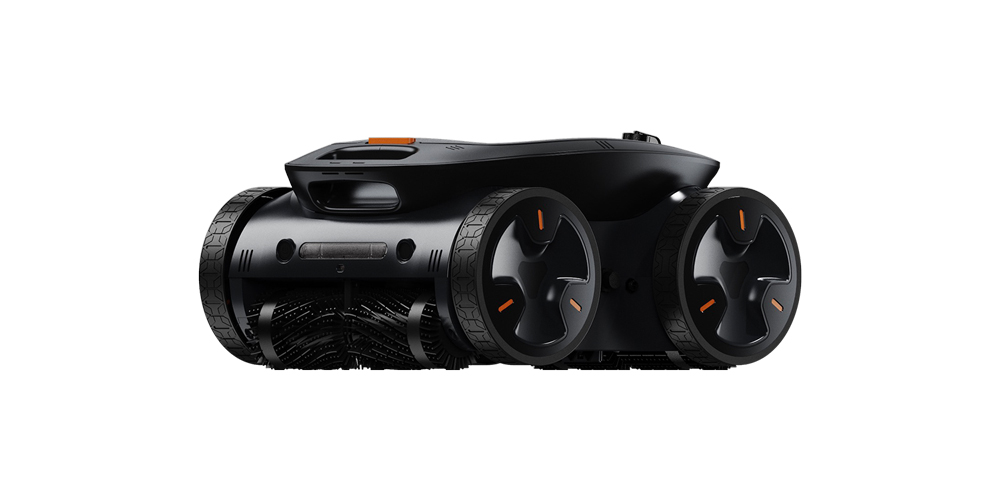
APEX ONLINE GUIDE
TABLE OF CONTENTS
USER INTERFACE
| INTERFACE | FUNCTION |
|---|---|
| Power Button | Turns device on or off |
| LED Light Indicator | Visual indicator |
LED INDICATOR COLOR DESCRIPTION
| POWER INDICATOR | |
|---|---|
| Power on | LED lights on |
| Standby mode | LED flashes in yellow color |
| MODE INDICATOR | |
| Manual mode | LED lights up in solid green color |
| Wall Cleaning mode | LED lights in gradient green color |
| Floor Cleaning mode | LED flashes in green color |
| BATTERY INDICATOR | |
| Low battery | LED lights up in red color when battery drops below 15% |
| ERROR INDICATOR | |
| Error | LED lights in gradient red color |
CLEANING MODES
Apex A1 Series comes with a set of cleaning modes available to the users. Each cleaning mode is described below to help you choose the best option for your swimming pool.
| MODE | DESCRIPTION | |
|---|---|---|
| Manual | Allow user to manually navigate the robotic pool cleaner to perform specific tasks or actions. Used mainly to clean specific spots. | |
| Automatic | Full Area Cleaning |
Robotic pool cleaner automatically performs predefined tasks to clean both pool floor and walls.
|
| Floor Cleaning |
Robotic pool cleaner automatically performs predefined tasks to clean pool floor.
|
|
| Wall Cleaning | Robotic pool cleaner automatically performs predefined tasks to clean pool walls using N-Path navigation. | |
| Optional | Water Surface Cleaning |
Available only with DynaSkimmer connected to the robotic pool cleaner. The robotic pool cleaner will power DynaSkimmer and pull it along its navigation path to clean the water pool surface and clean floating debris. |
NAVIGATION PATHS
Apex A1 Series is powered by an intelligent control system that uses the sensors to analyze your swimming pool. The algorithm will then use the best navigation path to clean your swimming pool in the most efficient way.
Below is the description of the navigation path used for every task or cleaning mode.
| TASK OR ACTION | NAVIGATION PATH | DESCRIPTION |
|---|---|---|
| Initial Navigation | O-Path | Robotic pool cleaner navigates along the edges of the pool floor, maintaining a distance withing 0.6 meters of the walls. |
| Floor Cleaning | Vortex-Path |
Robotic pool cleaner will start circling around the edges of the wall and move towards the center on every lap. This is the standard option for most private pools. |
| S-Path |
Robotic pool cleaner will start navigating along de edges on one wall from one end to another. Once reaching the end, it will make a U-turn towards the opposite direction of the wall. This option is used when the distance from wall to wall exceeds the maximum distance perceived by the ultrasonic sensor. |
|
| Wall Cleaning | N-Path | Robotic pool cleaner will climb the wall until reaching the waterline. Then it will diagonally climb down the wall, moving away to the right side of the initial spot and repeat the process. |
PREPARING THE DEVICE
On land
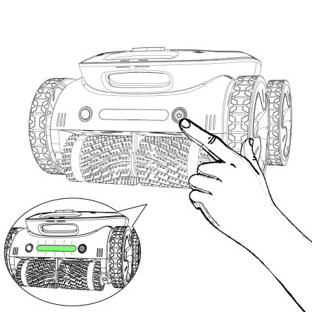
- Place the robotic pool cleaner flat on the surface, press the POWER button
- The unit will emit three beeps to indicate startup.
- The unit starts up and waits for 3 seconds for IMU calibration.
- The calibration is completed after a 1 second beep.
- The LED light will flash yellow to indicate that the unit is in standby mode.
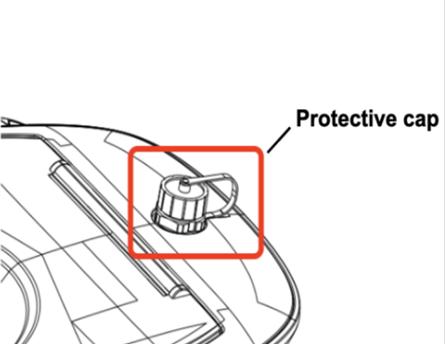
Before placing in water
Ensure that the protective covers for both the Connection Port and Charging Port are correctly installed in place and fully tightened/closed without gaps.
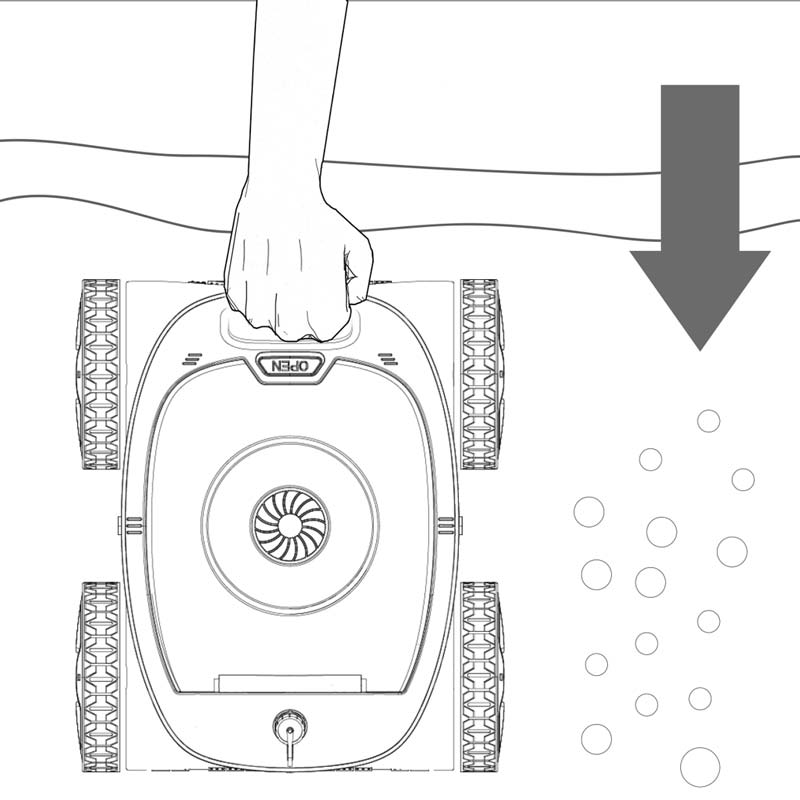
Once in the water
Once the unit is immersed in the water for 30 seconds, the Floor Cleaning mode is automatically activated.
After placing in water
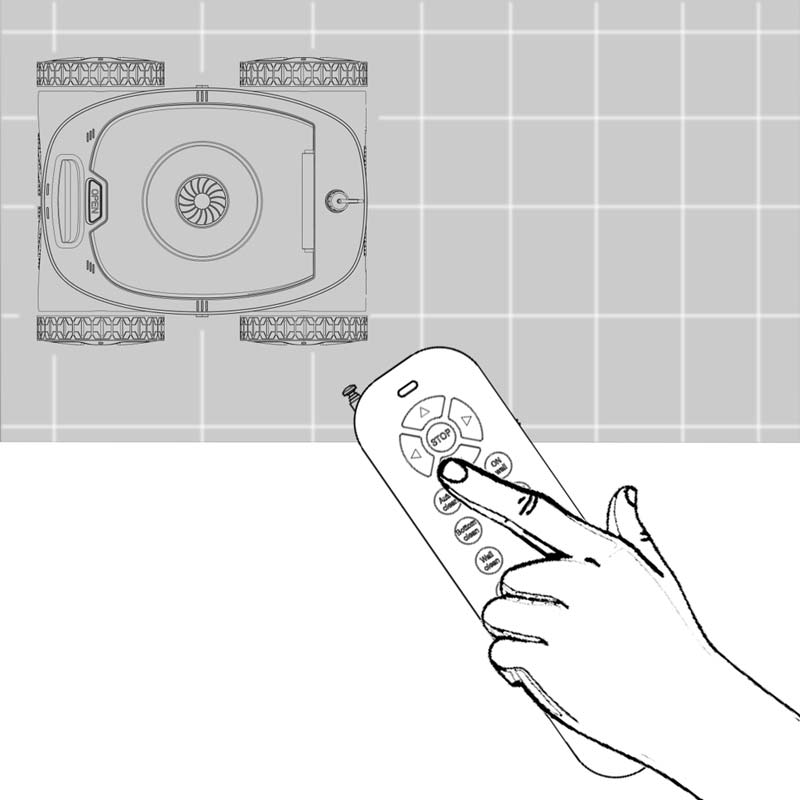
- Install a 9V battery (PP3) and turn on the switch on the right side of the remote control.
- Pull out the antenna.
- At the top of the remote control, the LED indicator will flash red when performing any action.
WARNING
Protective Covers: When no accessories (HydroLink, DynaSkimmer or PowerLink) are connected, ensure that the protective covers for both the Connection Port and Charging Port are properly installed and securely tightened without any gaps.
IMPORTANT TIPS
- Using the Mobile App: If you’re controlling the robot with the mobile app, ensure that it is successfully connected to the “Smart Life” application before submerging the machine in water.
- Updating to the Latest Version: To update to the latest version, you need to add and connect the HydroLink, DynaSkimmer or PowerLink.