APEX ONLINE GUIDE
TABLE OF CONTENTS
INTRODUCTION
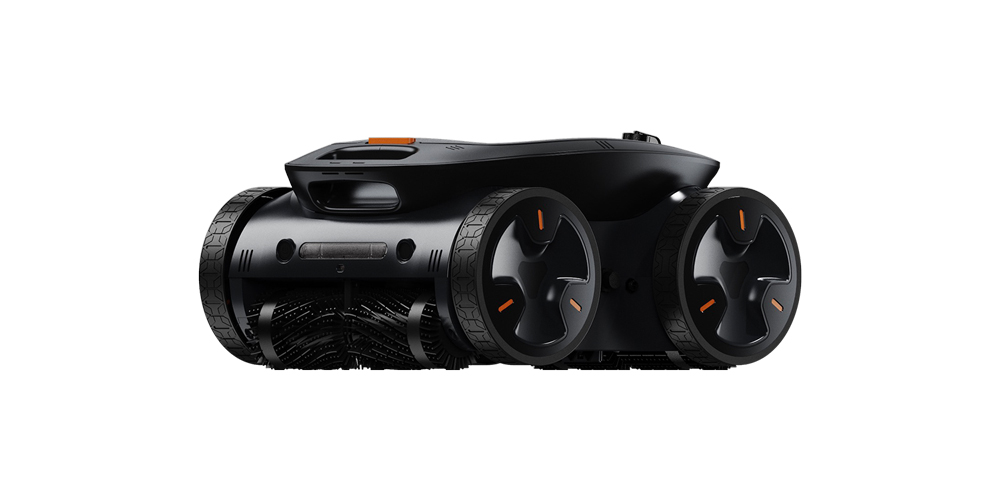
Apex Series can connect to a Wi-Fi network when connected to HydroLink, DynaSkimmer or PowerLink.
By taking advantage of cloud connectivity, you can remotely control the robotic pool cleaner anytime, anywhere, ensuring real-time access and control.
DOWNLOAD MOBILE APP
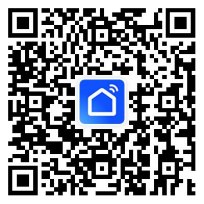
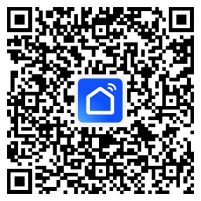
Download the app from the Google Play Store for Android or the App Store for iOS devices to access its features.
PREPARATION
- Download and install the mobile app Smart Life.
- Enable Bluetooth and Wi-Fi on your smart phone or smart device.
- The smart device must be connected to a network with 2.4GHz frequency.
- Turn on Location services.
- The robotic pool cleaner has been turned on and connected to the required accessories (DynaSkimmer, HydroLink, PowerLink).
LINKING UP DEVICE
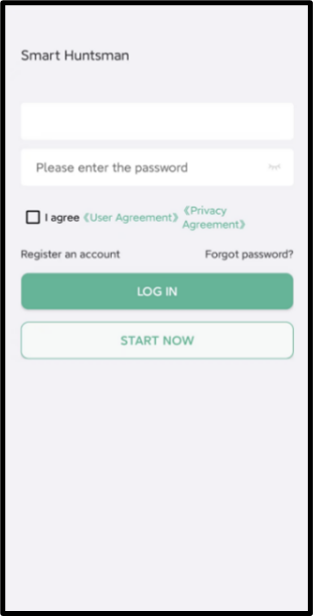
Register account or login
- Open mobile app on your smart device.
- Register to a new account or login to an existing one.
- You can also login through third-party apps.
Enter network configuration mode
Press and hold the WI-FI button on the accessory (DynaSkimmer, HydroLink, PowerLink) for at least 3 seconds to ensure that the indicator light is on and blinking.
Please, refer to each accessory’s section for detailed instructions
Add device to network
- Enable Bluetooth and Wi-Fi on your smart device.
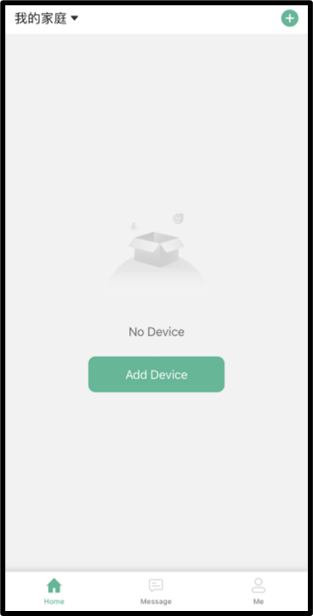
- On the mobile app, select “Add Device” to pair the robotic pool cleaner to the mobile app.
- The mobile app will start the process.
Complete the process
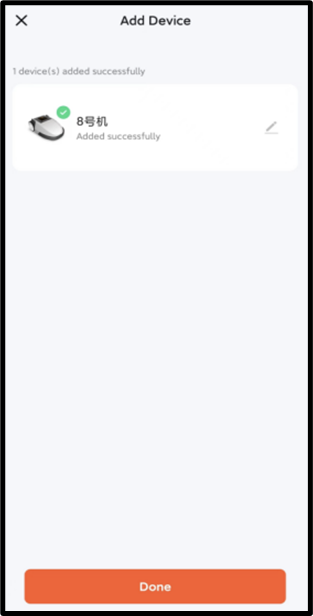
- Once the process is done, click on “Finish” to complete.
- Click “Home” on the lower navigation bar to find the newly added robotic pool cleaner.
- Click on the newly added device to enter the Device UI.
Optionally, you can change the name of the robotic pool cleaner.
USER INTERFACE
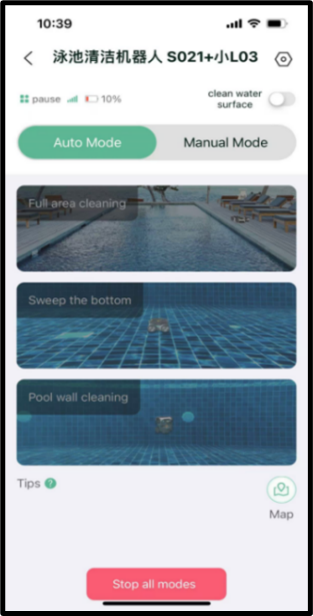
Automatic Mode
For this option, the mobile app has 3 cleaning modes:
- Full area cleaning
- Floor cleaning
- Wall cleaning
The robotic pool cleaner will automatically run and perform predefined tasks.
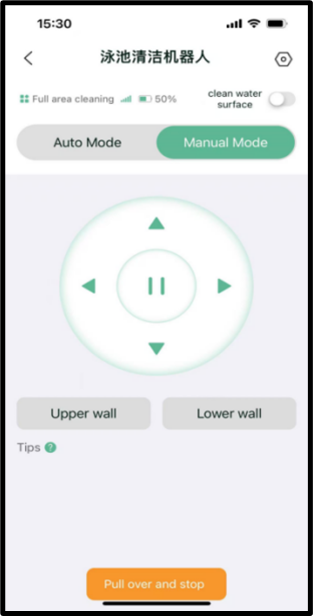
Manual Mode
For this option, you can control directly the movement of the robotic pool cleaner.
Use the arrows to navigate the robotic pool cleaner in a certain direction, use the pause button to stop and use the wall buttons to climb up or down the walls.
OTA UPGRADES
OTA (Over-The-Air) Upgrade refers to upgrading the device through the network without needing a data cable connection. It ensures the cleaner remains updated with the latest software for improved service quality.
Preparation:
- Robotic pool cleaner is paired to the mobile app.
- Mobile phone and robotic pool cleaner are connected to a stable network.
- Robotic pool cleaner must have sufficient battery to prevent interruptions during the process.
- Avoid submerging the robotic cleaner into the water during the process.
Instructions:
- Connect any of the available accessories: HydroLink, DynaSkimmer, PowerLink.
- Open the mobile application.
- Navigate to “Settings”.
- Select “Device upgrade”. (If a new version is available, it will be displayed; otherwise, it will indicate “The latest version is installed.)
- If an update is required, monitor the progress bar on your phone to track the upgrade.
- Once the upgrade is completed, the robotic pool cleaner can resume its normal tasks.